
|
|
||||||||
|
|||||||||
|
|||||||
| Creative Coffers Archive Creative Coffers Archive Forum |
 Transparent Avatar?
|
|
Login or Register now to see less ads. |
|
|
Thread Tools | Display Modes |
|
|
|
#1
 08-17-2009, 05:28 PM
|
||||
|
||||
|
Transparent Avatar?
I've been trying to figure out how to get transparent avatars, im using GIMP to make my images my current avatar was made by GIMP. And I turn the backround to transparent but when I upload it to the site (Avatar Part) the transparent backround shows up as white, can someone help me out? i've tried saving the image as a PNG file & a GIF image.
|
|
#2
08-17-2009, 09:33 PM
|
||||
|
||||
|
maybe you just delete the backround all together? (sorry, im not a wiz at this stuff) i think andrew or swash have transparent avatars, cant remember which though, ask them
|
|
#3
08-17-2009, 11:47 PM
|
||||
|
||||
|
Quote:
First, the image needs to be transparent in the first place. If you save it with a background, of course it won't save transparent. Next, you need to make sure it is indeed saved as .PNG or .GIF. I prefer .PNG cause it holds transparency better than .GIF does. If you do save it as a .GIF file, realize that anything semi-transparent, (Shadows, fading backgrounds, etc.) Will not show up cleanly. Finally, you need to make sure the image is the size appropriate for what you are trying to do. For example, when trying to upload an image to POF as your avatar, the original size of the image needs to be no larger 64x64, since that is the max size for an avatar here. If you try to upload a file larger than 64x64 as an avatar, the site will automatically resize the file without recognizing the transparency and in turn will remove the transparency of the file. I noticed that your current avatar is in your gallery and is 276 x 294. That's the reason your avatar isn't showing up transparent. You'll need to pull it back up, resize it to 64x64, then try uploading it. 
__________________
|
|
#4
08-18-2009, 03:15 AM
|
||||
|
||||
|
Quote:
Thanks a BUNCH Jack! Always can count on you to know your Computer Art! 
|
|
#5
08-17-2009, 11:48 PM
|
||||
|
||||
|
I'm not familiar with GIMP, but in Paint Shop Pro I have to run the optimizer while saving to get a transparency to stick. So, I "Save As", click "Options", and then click "Run Optimizer". If everything looks right, then I save in the optimizer.
There may be an easier way to do it, but I don't deal with transparencies all that often so it's not a big deal to me to take a couple of extra steps.  ETA: Good to know about resizing. |
|
#6
08-17-2009, 11:57 PM
|
||||
|
||||
|
Quote:
It has the optimizer you speak of, never seen it actually in PSP, just trying to help in case someone gets confused looking.  In PSP 10 on down (dont know about the latest) GIF is limited to 256 colors and PSP requires a color to be set as transparent, as there is no 'true' transparency in a GIF, it simply instructs viewers to not display the one color. There is should be no optimizer required for single frame images, as they are used to remove extra repeated data in a multiframed (animated) GIF. PNG supports 16 million colors, including transparency, PSP will save any transparency in the image automatically upon saving a PNG file. I would be willing to bet the OPs issue is the board resizing their image and thereby losing the transparency as Jack mentioned. Uploading it at 64x64 or smaller should resolve the problem.
__________________

|
|
#7
08-18-2009, 12:14 AM
|
||||
|
||||
|
Quote:
ETA: Here's a screenie: 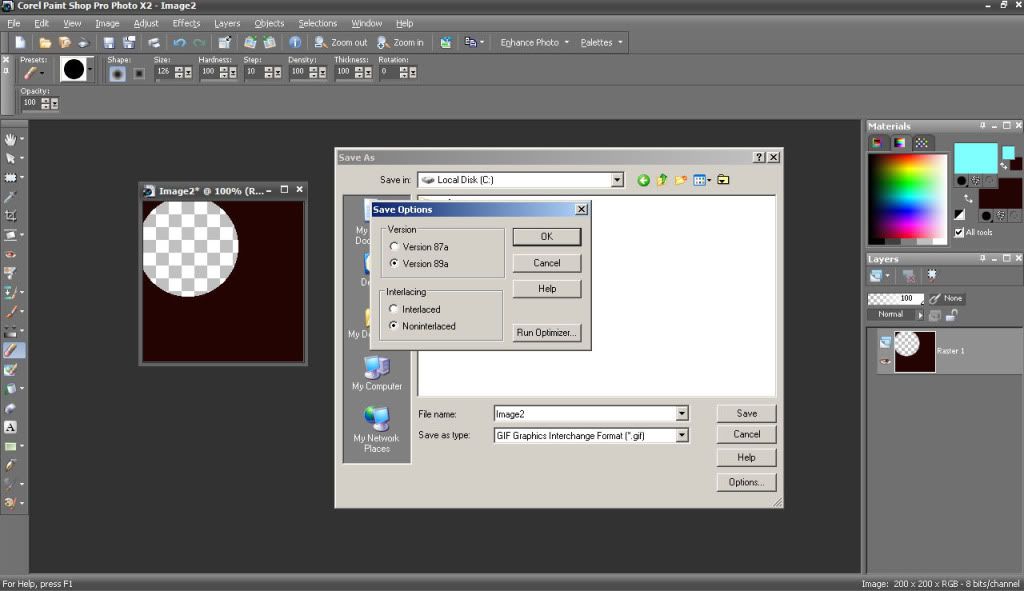 It never occurred to me that it might be a part of another program (if it's not on yours, that must be the case), but in any case, it's there on mine.
|
|
#8
08-18-2009, 12:54 AM
|
||||
|
||||
|
Ok, guess it does have an optimizer.
Ive used PSP since version 4 creating transparent gifs for my websites for years, and never ever used it. For the record? Its not required for any form of image transparency in PSP.
__________________
|
|
#9
08-18-2009, 01:09 AM
|
||||
|
||||
|
Quote:
Last edited by Aliese; 08-18-2009 at 01:32 AM.. Reason: I can't spell. |
|
#10
08-18-2009, 01:14 AM
|
||||
|
||||
|
Quote:
Lets me use the eye dropper to choose my transparent color on the image, and then I can click preview to see if its clean. However ive switched to PNG now, more colors, and easier because I dont even need to do that pallete thing! I just literally delete all the data making it transparent. If your "layer" is called "background" you cannot do this, you have to convert the "background" layer to a Raster layer first in PSP. Heck I might try the optimizer now! hehe
__________________
|
| Thread Tools | |
| Display Modes | |
|
|



















 Hybrid Mode
