Connecting POTCO accounts for family usage (linking accounts)
As of June 2, 2009, the ability to switch between accounts and play was removed from the game.
Parents can manage their kids pirate accounts, and arrange payment through one main account by linking them together.
One other perk I have noticed is it seems to be that if the main account has test access, so will the linked accounts. The main account has some control over the linked accounts, chat features, etc.
This "Guide" is to reflect how to link a player accounts.
Requirements:
2 Valid working pirate accounts. ( One must be a primary account, and not linked to any other accounts).
There are screenshots of the most involved screens below for reference.
---------------------------------
1. Proceed to the
Official Pirates of the Carribean Online website.
2. Login to website using your pirates account to be considered the "Primary" account (ie the Parents account).
3. Click on Account Services Menu (on left side)
4. Click Manage Account.
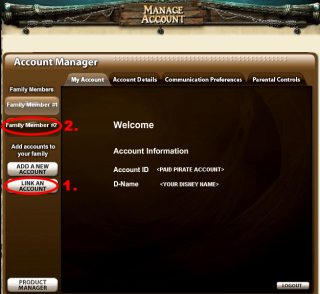
5. Click "Link An Account" on lower left.
(Picture 1, #1)
(If "Link An Account" button does not exist the account is NOT a primary account (or is under some form of parental controls).
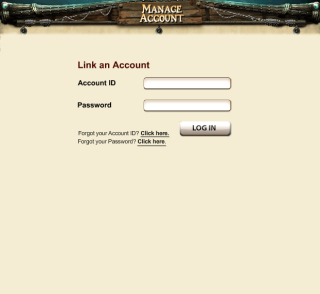
6. Input Login information for the second account (3rd, 4th, etc), or account to be linked and click "Login"
(Picture 2)
7. There should be some acknowledgement, and return you back to the "Manage Account" screen
(Picture 1).
8. You should now notice the linked account persons name in top left.
(Picture 1, #2)
9. Logout of account services (or simply close webpage).
Picture 1
 Picture 2
 Running multiple accounts on one computer
Using shared accounts one can of course play more than one pirate on more than one computer, but how might one play two pirates on the game computer?
NOTE: For MAC Computers - Proceed to read this thread:
How To Run Two Accounts On A MAC (Click Here)- once you have done the above steps to create / link accounts
Requirements:
2 valid "Pirates of the Caribbean Online" accounts.
System capable of running the game twice (in two separate windows)
Turning down video settings/options to thier lowest settings (F7) is recommended to accomodate two copies of the game in the same environment.
1. Start up POTCO, and login on the first of the two accounts.
2. If not already playing in a "Window", press "F7" and click "Fullscreen" button to change to window mode.
3. Press Ctrl+Alt+Del and select "Task Manager", this will activate Windows Task Manager.
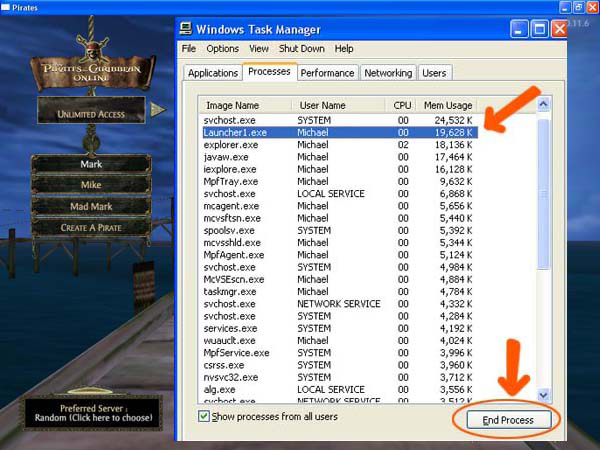
4. Under Processes tab, locate, and select Launcher1.exe and click on End Process. Click Yes in confirmation window then close the Windows Task Manager window.
(Picture 4)
5. Leaving original POTCO window open, Start up POTCO again, and login on your second account.
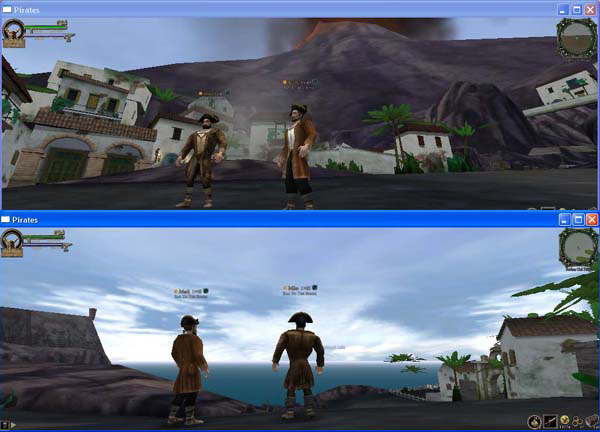
6. Arrange the now two POTCO windows on your screen to easily navigate/control both pirates.
(Picture 5)
Picture 4* (click for bigger picture)
 Picture 5*
 (click for bigger picture)
*Special thanks to
Ironhawk for the images 4 & 5
